When you purchased your computer or installed a new operating system, more than likely it came bundled with a web browser such as Internet Explorer or Apple Safari. While this browser seems to offer all the features you need when surfing the Internet, other alternatives exist such as Mozilla Firefox, Google Chrome, and Opera, options that can potentially increase your security and provide new ways of accessing information online.
Many people, however, stick with the installed web browser not because they don't know about other browsers but for the reason that they think problems will occur when using different applications. This article lists seven of those reasons:
1. My computer only can run one web browser
In probably 99% of cases this is completely wrong. Your computer can handle multiple web browsers, and while I don't necessarily recommend downloading and installing every one, experimenting with one or two can offer different views of the web and features you may find useful. As when installing other software, however, backup all important data on your machine first in case problems do occur.
2. It is too hard to learn another web browser
Virtually every web browser has a back and forward button, address bar, and search bar. You may have to take a few minutes to learn other features, such as bookmarks / Favorites, navigating the History, and even longer if you want to configure your browsing experience, but learning how to use a new browser should not take long at all. Some browsers, such as Mozilla Firefox, even come with a help feature for Internet Explorer users.
3. I'll lose all my bookmarks / Favorites
Most web browsers support importing bookmarks or Favorites from others quite easily. And while new bookmarks or Favorites in one web browser may not transfer immediately to another, you may wish to look at online bookmark management services such as Furl and Google Bookmarks. This way you can access your bookmarks with any browser, even one on a different machine!
4. Most sites won't display correctly
While some websites such as Windows/Microsoft Update and online banking sites may not work correctly on non-Internet Explorer browsers, a greater number of websites are being written with technologies that work well across all browsers. This is happening as an increased number of Internet users try different browsers.
5. Internet Explorer is safer than people say
While great strides have been made to increase Internet Explorer's security in recent versions, check a website like Secunia and compare the number of advisories regarding Internet Explorer versus other browsers. Especially note the unpatched exploits and their severities - you may be surprised.
6. Spyware and viruses aren't a problem - I use (insert Internet Service Provider here)
While many ISPs offer antivirus and anti-spyware/malware applications for their users, these will not protect you from all problems. These programs will not patch browser bugs, but they may detect certain malware trying to exploit them. Also, remember that security should take a multipronged approach since no software can detect every piece of malware. By using a potentially more-secure web browser along with security software, you reduce the chances of malware infection that much more.
7. I'm safe - I have an antivirus program, a firewall, and anti-spyware software
Source: http://goo.gl/M4kWo
Showing posts with label browser problems. Show all posts
Showing posts with label browser problems. Show all posts
Monday, May 16, 2011

Tuesday, July 28, 2009
How to setup multiple home pages in Firefox
First off, go to Tools, and then Options from the top menu. Click on the Main or General tab.
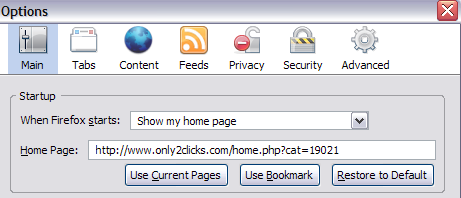
Now there are two ways you can setup multiple home pages in Firefox, an easy way and a more manual way. The manual way is to simply type bother URLs into the Home Page text box and separate them with the “|” or pipe symbol. The pipe symbol is usually above the Enter key on the keyboard.
So if I wanted to have Google.com and Yahoo.com both set as startup home pages, I would type in the following:
http://www.google.com|http://www.yahoo.com
So your screen should look like this with the multiple URLs in the Home Page box:
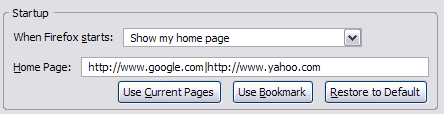
And that’s it! Now when you open a new instance of Firefox, both of the tabs will appear! Sweet! Now there’s also an easier method of doing the same thing and that is to Use Bookmark.
Basically, if you have a folder of bookmarks in Firefox and you want to set all of them as your startup home pages, just click the Use Bookmark button and select the entire folder.
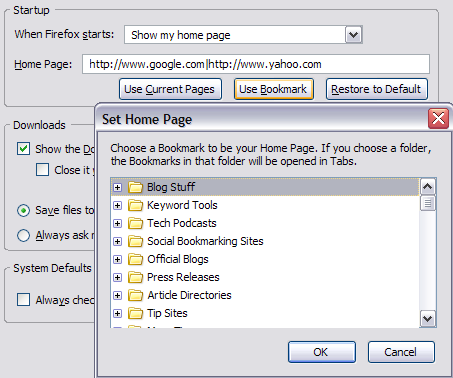
Whichever bookmarks you have stored in that folder will automatically be placed into the Home Page text box separated by the pipe symbol. So you can use either method to get multiple start pages in Firefox!
How to setup multiple home pages in IE
Adding more than one site to your start up home pages in IE is also super easy! Basically, go to the site you want to add and then click on the down arrow next to the Home Page icon in IE that’s to the right hand side:

When you click on that, you’ll get the option to change your current home page to the new page or to simply add this webpage to your home page tabs.
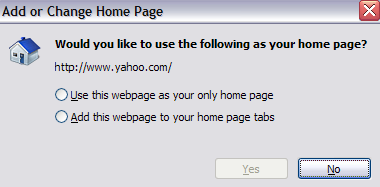
Obviously, choose the second option and now you’ll get multiple tabs appear when you start up Internet Explorer also!
Remember to be judicious with this feature as it can be very annoying since every time you click on the Home Page button, all of the sites you specified will open up in different tabs! I would suggest a maximum of 3, with 2 probably being the best. Enjoy!
Friday, July 17, 2009
How to resolve "The Page cannot be displayed" error in IE
This problem can come about due to a number of reasons, some of which are addressed in the following steps:
1. Check that you are connected to Tiscali Broadband and test the connection on a few different websites such as http://www.iyogi.co.uk and http://www.bbc.co.uk. If you can access another website address, the problems lie with the page you were trying to visit and you should contact the site owner directly to pursue this matter.
2. Delete your temporary Internet files and cookies. To do this, follow these steps:
- Click Start, point to Settings, and then click Control Panel
- Double-click Internet Options.
- Click the Temporary Internet Files, click the Settings button.
- Then click the Delete Cookies button and confirm this decision by clicking Yes at the next prompt.
- Next click the Delete Files button and confirm this decision by clicking Yes at the next prompt.
Source
http://www.tiscali.co.uk/help/broadband/nowebpage.html
1. Check that you are connected to Tiscali Broadband and test the connection on a few different websites such as http://www.iyogi.co.uk and http://www.bbc.co.uk. If you can access another website address, the problems lie with the page you were trying to visit and you should contact the site owner directly to pursue this matter.
2. Delete your temporary Internet files and cookies. To do this, follow these steps:
- Click Start, point to Settings, and then click Control Panel
- Double-click Internet Options.
- Click the Temporary Internet Files, click the Settings button.
- Then click the Delete Cookies button and confirm this decision by clicking Yes at the next prompt.
- Next click the Delete Files button and confirm this decision by clicking Yes at the next prompt.
Source
http://www.tiscali.co.uk/help/broadband/nowebpage.html
Friday, July 10, 2009
Top 5 steps to optimize your web browser experience
As we all know, internet is used on large scale by business houses and other education institutions, if Internet or computer speed is slow; it reflects on the productivity of that organization.
Use these 5 steps to keep your internet explorer optimized and so do your web experience
Remove Temporary files
Due to the continuous process of installing software’s in the computer and accessing the Internet explorer, lot of junk files are accumulated in the computer ,These are basically temporary junk files, which uses computer resources , and decrease the speed of the computer , now the question arises how to delete these temporary junk files from the computer .
First of all Go to Run > type “Temp” this will open a new window, if there are temporary files in it, delete them.
Again Go to Run > and this time type %temp% and delete the files from here,
Clean up disk errors
Disk clean up (clearnmgr.exe) is a computer maintenance utility included in Microsoft Operating System; this utility cleans up all the unwanted files from the computer and increases the speed of the computer and Internet explorer. To do these go to Run and type Cleanmgr.exe, and start the disk cleaning process.
Removing unnecessary background process
Computer has lot of programs and services running in the background, which eats up a lot of computer resources, to increase the speed of the computer and Internet, we need to stop all unwanted programs and services, from our computer. It will free our computer resources and increases the performance of the computer.
Install/Reinstall the pc security software
As we all know that our computer is always prone to the threats on the Internet, so we must install proper security software i.e. virus removal software , spyware adware removal software and firewall and always update this security software.
Optimize the web browser (Internet explorer)
Using web browser for a long time, decreases the speed of the web browser, due the accumulation of lot of files, so on regular intervals take back up of cookies and bookmarks.
After that go to Tools > Internet Options >Advance and finally click on the Reset button,
If you follow these steps, it will increase the speed of the computer as well as the Internet explorer.
Source:
http://www.articlesbase.com/computers-articles/top-5-steps-to-optimize-your-web-browser-experience-877577.html
Use these 5 steps to keep your internet explorer optimized and so do your web experience
Remove Temporary files
Due to the continuous process of installing software’s in the computer and accessing the Internet explorer, lot of junk files are accumulated in the computer ,These are basically temporary junk files, which uses computer resources , and decrease the speed of the computer , now the question arises how to delete these temporary junk files from the computer .
First of all Go to Run > type “Temp” this will open a new window, if there are temporary files in it, delete them.
Again Go to Run > and this time type %temp% and delete the files from here,
Clean up disk errors
Disk clean up (clearnmgr.exe) is a computer maintenance utility included in Microsoft Operating System; this utility cleans up all the unwanted files from the computer and increases the speed of the computer and Internet explorer. To do these go to Run and type Cleanmgr.exe, and start the disk cleaning process.
Removing unnecessary background process
Computer has lot of programs and services running in the background, which eats up a lot of computer resources, to increase the speed of the computer and Internet, we need to stop all unwanted programs and services, from our computer. It will free our computer resources and increases the performance of the computer.
Install/Reinstall the pc security software
As we all know that our computer is always prone to the threats on the Internet, so we must install proper security software i.e. virus removal software , spyware adware removal software and firewall and always update this security software.
Optimize the web browser (Internet explorer)
Using web browser for a long time, decreases the speed of the web browser, due the accumulation of lot of files, so on regular intervals take back up of cookies and bookmarks.
After that go to Tools > Internet Options >Advance and finally click on the Reset button,
If you follow these steps, it will increase the speed of the computer as well as the Internet explorer.
Source:
http://www.articlesbase.com/computers-articles/top-5-steps-to-optimize-your-web-browser-experience-877577.html
Friday, May 22, 2009
How to enable Cookies in AOL Browser
Cookies are used to store the temporary data on the user computer , for example username password.
Follow the below steps to enable cookies in AOL Browser
1. Click on Safety,
2. Click on Settings,
3. Click on the Essentials tab,
4. Click Internet (Web Browser) Settings,
5. On the right-hand side of the window, click Internet Explorer Settings,
You should now have a window open called Internet Options.
6. Click on the Privacy tab,
7. If the Slider-Bar is set to Block All Cookies or High, go to step 5,
If the Slider-Bar is set to anything else, then your Cookies are enabled. Go to step 6,
8. Drag the slider to Medium High,
9. Click the OK button, *
10. Close the AOL Preferences: Essentials window,
11. Reload the page.
See Also
computer tech support
How to enable Cookies in firefox
How to enable Cookies in firefox
How to enable Cookies In Internet Explorer
How To Modify Cache In Internet Explorer
Follow the below steps to enable cookies in AOL Browser
1. Click on Safety,
2. Click on Settings,
3. Click on the Essentials tab,
4. Click Internet (Web Browser) Settings,
5. On the right-hand side of the window, click Internet Explorer Settings,
You should now have a window open called Internet Options.
6. Click on the Privacy tab,
7. If the Slider-Bar is set to Block All Cookies or High, go to step 5,
If the Slider-Bar is set to anything else, then your Cookies are enabled. Go to step 6,
8. Drag the slider to Medium High,
9. Click the OK button, *
10. Close the AOL Preferences: Essentials window,
11. Reload the page.
See Also
computer tech support
How to enable Cookies in firefox
How to enable Cookies in firefox
How to enable Cookies In Internet Explorer
How To Modify Cache In Internet Explorer
Tuesday, May 19, 2009
How to enable JavaScript In AOL
If JavaScript is not enabled in your browser then you would not be able to see many good features of a website , so to enable JavaScript in your internet explorer browser please follow these steps To enable JavaScript to view this site correctly, please read these steps carefully.
1. Click on Safety,
2. Click on Settings,
3. Click on the Essentials tab,
4. Click Internet (Web Browser) Settings,
5. On the right-hand side of the window, click Internet Explorer Settings,
You should now have a window open called Internet Options.
6. Click on the Security tab,
7. Click on the Custom Level... button,
You should now have a window open called Security Settings.
8. Scroll down to where there is an option called Scripting,
9. Underneath the Active Scripting option, click on Enable,
10. Click the OK button,
11. Click Yes to the Security Warning, *
12. Click the OK button in the Internet Options window,
13. Close the AOL Preferences: Essentials window,
14. Reload the page.
See Also
optimize browser
windows firewall security
Browser Market Share 2009
enable Cookies In Internet Explorer
Microsoft Captures Video of IE8 to Prove It's Faster
1. Click on Safety,
2. Click on Settings,
3. Click on the Essentials tab,
4. Click Internet (Web Browser) Settings,
5. On the right-hand side of the window, click Internet Explorer Settings,
You should now have a window open called Internet Options.
6. Click on the Security tab,
7. Click on the Custom Level... button,
You should now have a window open called Security Settings.
8. Scroll down to where there is an option called Scripting,
9. Underneath the Active Scripting option, click on Enable,
10. Click the OK button,
11. Click Yes to the Security Warning, *
12. Click the OK button in the Internet Options window,
13. Close the AOL Preferences: Essentials window,
14. Reload the page.
See Also
optimize browser
windows firewall security
Browser Market Share 2009
enable Cookies In Internet Explorer
Microsoft Captures Video of IE8 to Prove It's Faster
Monday, May 11, 2009
How to enable cache in Mozilla
Cache is a temporary storage area where frequently accessed data can be stored for rapid access. Once the data is stored in the cache, it can be used in the future by accessing the cached copy rather than re-fetching the original data.
To modify your Cache so that your browser loads the most recent copy of a page, please read these steps carefully.
1. Click on Edit,
2. Click on Preferences...,
3. Click the plus sign next to Advanced on the left,
4. Click Cache,
5. Under the Set Cache Options section, click Every time I view the page,
6. Click the OK button,
7. Reload the page.
See Also
optimize browser
Windows Live One Care Help You
windows firewall security
Online Computer Support
enable Cookies In Internet Explorer
To modify your Cache so that your browser loads the most recent copy of a page, please read these steps carefully.
1. Click on Edit,
2. Click on Preferences...,
3. Click the plus sign next to Advanced on the left,
4. Click Cache,
5. Under the Set Cache Options section, click Every time I view the page,
6. Click the OK button,
7. Reload the page.
See Also
optimize browser
Windows Live One Care Help You
windows firewall security
Online Computer Support
enable Cookies In Internet Explorer
Subscribe to:
Posts (Atom)

