Showing posts with label internet explorer. Show all posts

Thursday, June 24, 2010

Internet Explorer speed up

The web is a sparkling achievement of modern society. It's everywhere—from the home to the classroom. We use it to communicate, to work, to play—even to waste time, when there's not a lot to do.

Yet there's nothing more frustrating than having this technical marvel at our fingertips 24 hours a day, 7 days a week, only to wait as our computers access the Internet at a crawling pace. Thankfully, Windows Internet Explorer provides some useful options for quicker web surfing. Let's look at these options now.

Reduce the size of your webpage history

Internet Explorer stores visited webpages to your computer, organizing them within a page history by day. Although it's useful to keep a couple days of web history within your computer, there's no need to store more than a week's worth. Any more than that and you're collecting webpages that will slow down your computer's performance.

To reduce your webpage history:

  1. In Internet Explorer, on the Tools menu, click Internet Options.

    In the General tab, under Browsing history, click Settings.

    Image of the Internet Options dialog box
  2. Under History, find the Days to keep pages in history: box. In the box, type 1. Click OK.

    Image of the Internet Options dialog box

    Reduce the number of days to keep pages in history.

    Temporary Internet Files and History Settings dialog box, with the Automatically button selected

    Days to keep pages in browser history.

Don't save encrypted webpages

Encrypted webpages ask for usernames and passwords. These pages scramble information to prevent the reading of this sensitive information. You can define Internet Explorer to not save these types of pages. You'll free up space by saving fewer files to your computer, in addition to keeping secure information off of your computer.

To not save encrypted webpages:

  1. In Internet Explorer, on the Tools menu, click Internet Options.

  2. In the Internet Options dialog box, click the Advanced tab.

  3. In the Settings section, scroll down to the Security section. Select the Do not save encrypted pages to disk option, check box, as shown here. Click OK.

    Internet Options dialog box with the Do not save encrypted pages to disk check box selected

    The selected Do not save encrypted pages check box

source:http://www.microsoft.com/athome/setup/optimize.aspx

Thursday, June 10, 2010

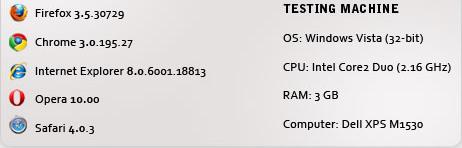
Performance Comparison Of Web Browser

Browser Cache Performance
Total page load times for Yahoo.com with primed caches were measured to see how well browser perform when you have visited a website already. The same variable latency difference may be relevant here with calculating load time.


CPU Usage (Under Stress)
CPU usage reveals how much resources a browser needs: resource hobs show higher CPU utilization. Windows Resource Monitor was used to obtain average CPU occupation (%) while SunSpider was running to simulate activity.


CSS Rendering Speed
Browser with fast CSS rendering speed have faster page response time. The nontroppo.org CSS Rendering Benchmark was used to measure the onLoad duration for complete table-to-div conversion.


DOM Selection Speed
The faster a browser can select elements in a web page, the more responsive it is on asynchronous page updates (which most Web 2.0 apps hevily rely on). SlickSpeed was used to see how fast jQuery selects elements.


JavaScript Speed:-
Fast JavaScript execution times means that Ajax-heavy sites like Digg and webapps like Gmail will be more responsive to user action. To test JavaScript function execution speeds, SunSpider JavaScript Benchmark was used.


Page Load Time
The total time it takes to load Yahoo.com's front page was measured using Numion Stopwatch. Note that due to latency difference that occur with variable site traffic and server load, caution should be used when interpreting the results.


Overall Performance
Based on the result, the relative rating of each web browser is displayed below.


Additional Info


source:-

Friday, August 14, 2009

Uninstalling IE7 (Windows XP only)

Before Uninstalling Please Complete the following steps.

  • Set a restore point ( If something unwanted happens)
  • Disable antivirus, antispyware, crashguards etc.
  • Shut down all other running programmes (except for windowsfirewall) - that includes Messenger, Windows Defender, OneCare - don't forget to exit via systray icons as well.
  • Turn off Automatic Updates until you have uninstalled all you want, rebooted twice, installed what you want and rebooted twice - once you've done that, turn Automatic Updates back on.

The IE7 installer will automatically remove any beta versions of IE7, or the Release Candidate version, automatically as part of the upgrade to IE7 final.

If you decide to uninstall a previous beta of IE7 separately and before running the IE7 final installer, please reboot TWICE after the old build of IE7 has been removed. This is because on first boot after uninstalling IE7 there are several processes that occur before Windows finishes loading. Sometimes things don't *quite* get cleaned up properly, and that second boot ensures that we're working with as clean a slate as possible and that there are no left over tasks hanging around that may mess things up.

IE7 Final

Control Panel, Add/Remove Programs. Scroll down to Windows Internet Explorer. Remove (Windows XP only)

If the option shown above does not appear, make sure "view hidden folders" is enabled (Control Panel, Folder Options, View tab).


See Also
windows xp support
Preview Internet Explorer 8
Internet Explorer Browser 7 Problems
How to enable Cookies In Internet Explorer, ie

Wednesday, August 12, 2009

Try spoofing IE6

Many sites provide many types of CSS styles to suit the Web browser that is visiting the site. Reality is that IE has done a real bad job in the past when it comes to CSS, and it is inevitable, when MS suddenly starts getting things right, that a lot of sites are suddenly going to break.

If changing the UAS (User Agent String) does not help your problem, please report the site in the newsgroups and to MS using the standard feedback options. Also, please send feedback to the site's owners so that they will be aware that they have to update their sites.

Malware

Yes, malware. Viruses, spyware, foistware, malware. There is stuff that may have been undetectable when it was installed. The real bad guys use cutting edge code to try and infect you. There is no antivirus or spyware removal product on this planet that can protect us from everything. There will always be a window of opportunity between a virus/explioit being used, and detection being added to various protective softwares. This is why you must rescan on a daily basis, even if previous scans were clean and you have not been on the internet since.

See also
Pre-installation advice for IE7
Preview Internet Explorer 8
How To Modify Cache In Internet Explorer

Thursday, August 6, 2009

Pre-installation advice for IE7

Follow the below steps before installing Internet Explorer Some may not agree with my advice, but years of experience have shown this to be best practice...

1. The first thing to do is READ THE RELEASE NOTES. There are known issues and you may save yourself hours of grief if you make sure you are informed before you install IE7.
2. Set a restore point (just in case).
3. Turn off Automatic Updates (believe me, you'll thank me later if you've already installed an IE7 beta or RC build).
4. Disable protective software such as antivirus support, antispyware and crash guards.
5. DO NOT TURN OFF YOUR FIREWALL!!!
6. Stay connected to the internet.
7. Shut down all running programmes - that includes Messenger, Windows Defender, and OneCare - don't forget to check the systray icons as well.
8. Install Internet Explorer 7. Reboot *twice* before running your new Web browser for the first time.
9. Don't forget to re-enable your antivirus, third party firewall and other protective software now that you're finished.
10. Do not reinstall any version of Microsoft Windows in any way after you install Internet Explorer 7. Do not upgrade Windows in place or upgrade to a new edition. You must uninstall IE7 and reboot twice before attempting to repair, reinstall or upgrade Windows:
http://support.microsoft.com/default.aspx?scid=kb;en-us;917964

source:
http://www.ie-vista.com/known_issues.html#pre-install

Tuesday, April 14, 2009

New Features in Microsoft Internet Explorer 8

IE8, which can be downloaded free, has cool new add-ons : "Web slices" let you quickly call up selected content from a Web page — such as updates from an Amazon’s auction page — via the IE8 favorites bar; "accelerators" make it easier to cut and paste text from one page and insert it 0n another. Beyond that, IE8 has restored some 0f Microsoft's lost Market Share. Mike Nash, corporate vice president of Windows product management, insists IE8 is uniformly faster at loading Web pages than Firefox 3.0, despite discussions in tech circles about this claim.

"I feel very good that IE8 will be a reason to keep using IE," Nash said in an interview. "And for our previous customers, who may not be using IE today, IE8 will be a compelling reason to come back."

Web browsers were once so mundane that Microsoft took five years to upgrade IE6.0, introduced with Windows XP in 2001, to IE7. Millions still use IE6. Meanwhile, Firefox, introduced in late 2004, has racked up significant market share and popularized features, such as tab browsing, which lets you quickly click back to several open Web pages.
As of last month, Firefox commanded a 22.00% global market share vs. 68.00% for IE, according to Net Applications. Meanwhile, Opera, Apple's Safari and Google's Chrome are staking out potentially huge new turf for browsers on computing devices other than laptops and desktop PCs.

Web browsers have emerged as the doorway to an interactive Internet, which people are increasingly accessing on mobile devices, cars, TV recorders, even video gaming consoles. "We're really happy to see Microsoft isn't standing still anymore," says Mike Beltzner, Firefox director of development. "But we're not standing still, either."

Firefox 3.5, due this summer, will up the ante by supporting HTML 5, a new Web standard that makes it easier to embed videos on Web pages, and "canvas," which lets artists hand draw images on Web pages.

Apple and Google are moving aggressively in browsing on cellphones, while Opera is gaining a foothold with its Opera Mini, a free cellphone browser popular with BlackBerry and Windows Mobile users. And 0pera is the browser that connects Nintendo's Wii gaming console to the Web. "Our browser runs on any platform or device," says Rod Hammlin, Opera senior vice president.
Microsoft supplies a version of IE for Windows Mobile devices, and a separate Web interface for Xbox 360.

IE8 could help the software giant regain ground in these browser wars. "So long as IE8 delivers as advertised, I believe it could help slow or even largely halt Windows users moving to alternative browsers," says Charles King, principal analyst at Pund-IT. "Whether that will be enough to draw back customers who have already migrated remains to be seen."

Related Search
onilne microsoft windows tech support
Why IE8 As My Default Browser
Hackers Target IE 7 Browser Again
Microsoft Captures Video of IE8 to Prove It's Faster

Wednesday, March 25, 2009

How to Use IE Securely

Internet Explorer provides 4 zones for which you can establish separate security settings. The purpose of this article is to introduce these 4 zones and how to use them to ensure you safely browse the Internet. By following the advice in this article, you’ll shrink your chances of being the victim of an attack when you inadvertently visit a malicious Web site.

The 4 zones in Internet Explorer are :
• Internet
• Local intranet
• Trusted sites
• Restricted sites

The Internet Zone
The Internet zone is the zone that contains all the Web sites you haven’t placed in another zone. Think of it as the default zone. The settings you establish for the Internet zone are applied to any Web site that you haven’t specifically listed in the Local intranet, Trusted sites or Restricted sites zones.

Since the Internet zone’s settings are the default, you should use the highest level of security that you can for this zone. Generally, a “Medium” security level is sufficient, but since many Internet Explorer Support vulnerabilities absorb active scripting, it’s best to use the “High” level of security so that active scripting is disabled by default. Changing to a “High” security level will make parts of some Web sites not work properly, but you can always add a site to your Trusted sites zone if you want to allow the active script to run.
Follow these instructions to change the Internet zone’s security setting to “High” in Internet Explorer.

Intranet Zone
The Intranet zone contains all the sites that are on your organization’s local intranet. Internet Explorer provides this zone because it’s reasonable that you 0r your employer might want to enable some features for sites on your local intranet, but not on the wider Internet.

Trusted Sites Zone
The Trusted sites zone is a place where you can list Web sites that you trust not to harm your computer. By setting the security in this zone to “Medium-low” 0r “Low”, you ensure that most or all content will run without prompts.
Follow these instructions to in IE7 or in IE6.

Restricted Sites Zone
The Restricted sites zone is a place where you can list Web sites that you think could potentially damage your computer or steal your data. By setting the security for this zone to “High”, you restrict the types of content sites in the zone can run 0n your computer, helping to protect your computer from possible attacks.

Related Search
Browser Market Share 2009
Internet Explorer Browser 7 Problems
Hackers Target IE 7 Browser Again
Top 5 Steps to Optimize Your Internet

Friday, February 6, 2009

Internet Explorer 7 operates in much the same way as earlier versions of the Web browser. You
type the URL of the site you want to visit in the Address bar, you click the Back and Forward
buttons to return to previous pages and then back again, you click the Favorites button to add the
sites you really like to your Favorites, and so on. That said, Internet Explorer 7 also offers several
new features. For example, tabbed browsing enables users to open multiple sites in a single
browser window — the upshot being that there are fewer taskbar buttons to contend with. Internet Explorer support 7 also enables users to subscribe to feeds — that is, syndicated Web
content, such as news feeds, blogs, and so on. Perhaps more important, Internet Explorer 7
includes greatly enhanced security. To start Internet Explorer 7, click Start and click
Internet.

1) Type a URL in the Address bar.

2) Click Refresh to refresh the currently
displayed site.

3) Click Stop to stop the page-loading
process.

4) To search the Web, type a keyword or
phrase in the Live Search field and
press Enter.

5) Click Back and Forward to return to
previous pages and back again.

6) Click Favorites to view your Favorites.

7) Click Add to Favorites to add the
currently displayed page to your
Favorites.

8) View and switch between tabs here.

9) Click Home to return to the site
displayed when Internet Explorer 7
is launched.

10) Click Feeds to view subscribed feeds.

11) Click Print to print the currently
displayed page.

12) Click Page to access page options,
such as Zoom.

13) Click Tools to access tools, such as the
Phishing Filter.
l View security settings here, and
double-click to change them.

Tuesday, January 20, 2009

Internet Explorer Browser 7 Problems

So you thought that everything was going to be big when you upgraded to Internet Explorer 7 and that all of your web-browsing woes would have been finally laid to rest?

Despite having downloaded to the latest stable release of Internet Explorer 7, problems are bound to occur, such as:
• The web browser temporarily hangs / freezes up / locks up while loading certain WebPages, such as those that use the contain Adobe Acrobat Reader plugin or any pages that contain client-side Java applets.
• Web pages take an unacceptably longer time to load than is normally expected, even if you have rebooted your machine or you are on a high-speed Internet connection.
• The web browser stops responding completely, and refuses even to terminate even if you attempt to kill its process through Windows Explorer.
• The web browser spontaneously crashes and stops running.
Determining what causes Internet Explorer Browser problems is just as much a mystery now as it has always been with previous versions of this web browser.
Believe it or not, the vast majority of Internet Explorer 7 problems have nothing to do with the speed of your Internet connection, or your computer's memory or CPU.

On the contrary, most typically, the cause of this type of problem is usually one of the following:
• You have inadvertently downloaded rogue spyware onto your PC from some rogue pop-up banner from some website that you recently visited.
• You may have inadvertently unleashed a virus onto your system through some file you have downloaded or some e-mail attachment you opened up.
• Your computer's hard drive may be severely defragmented.
• Your Windows registry may be corrupted or in dire need of re optimization

Wednesday, November 12, 2008

Speed UP Internet Explorer 7

In Present era there is lots of browser available like internet explorer, safari and firefox. And nowadays Internet Explorer Support has been in a features arms pursuit with Firefox for a while. But people still using internet explorer because they are very familiar to it. If Internet Explorer did not ship with Windows it would not have the amount of users it does.

In case new user want to use Internet explorer but also want to give speed boost then given below are the some tips for that…

If you don’t Need a Proxy Don't Use One.

If you are having high speed of internet connection then there is no need of proxy server because that uses in the case of you are having very slow internet connection. So How can you remove it? For that you should have to go for tools and select Internet Options. In the Internet Options click on the Connections tab and press the LAN settings. Just remove all of the check marks, click on OK.

A proxy server is used if you have a slow connection. If you have a high speed connection you usually don't need it. Here is how you remove it. Go to tools and select Internet Options. In the Internet Options click on the Connections tab and press the LAN settings. Just remove all of the check marks, click on OK.

Getrid of 3rd Party Toolbars

You should get rid of third party toolbar because the problem with it is that when you installed they take up bandwidth and computer resources while you are browse the internet. To remove that tool bar nothing hard to do just identifies that tool bar and go in control panel in that go add/remove programs. If it is not listed in add/remove programs it may be spyware. You will then need to scan your computer with your favorite spyware removal software.