Showing posts with label ie repair. Show all posts

Tuesday, July 28, 2009

How to setup multiple home pages in Firefox

First off, go to Tools, and then Options from the top menu. Click on the Main or General tab.
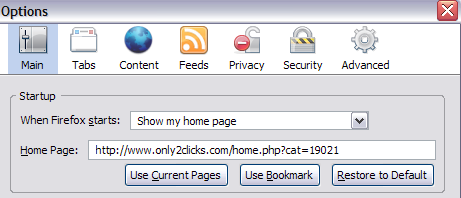
firefox main tab

Now there are two ways you can setup multiple home pages in Firefox, an easy way and a more manual way. The manual way is to simply type bother URLs into the Home Page text box and separate them with the “|” or pipe symbol. The pipe symbol is usually above the Enter key on the keyboard.

So if I wanted to have Google.com and Yahoo.com both set as startup home pages, I would type in the following:

http://www.google.com|http://www.yahoo.com

So your screen should look like this with the multiple URLs in the Home Page box:
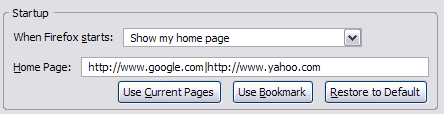
firefox startup

And that’s it! Now when you open a new instance of Firefox, both of the tabs will appear! Sweet! Now there’s also an easier method of doing the same thing and that is to Use Bookmark.

Basically, if you have a folder of bookmarks in Firefox and you want to set all of them as your startup home pages, just click the Use Bookmark button and select the entire folder.
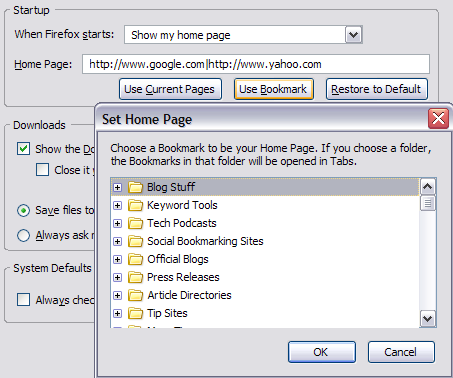
use bookmark

Whichever bookmarks you have stored in that folder will automatically be placed into the Home Page text box separated by the pipe symbol. So you can use either method to get multiple start pages in Firefox!

How to setup multiple home pages in IE

Adding more than one site to your start up home pages in IE is also super easy! Basically, go to the site you want to add and then click on the down arrow next to the Home Page icon in IE that’s to the right hand side:

add or change homepage

When you click on that, you’ll get the option to change your current home page to the new page or to simply add this webpage to your home page tabs.
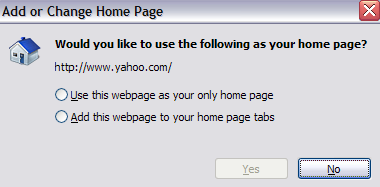
add to home page tabs

Obviously, choose the second option and now you’ll get multiple tabs appear when you start up Internet Explorer also!

Remember to be judicious with this feature as it can be very annoying since every time you click on the Home Page button, all of the sites you specified will open up in different tabs! I would suggest a maximum of 3, with 2 probably being the best. Enjoy!

Friday, July 17, 2009

How to resolve "The Page cannot be displayed" error in IE

This problem can come about due to a number of reasons, some of which are addressed in the following steps:

1. Check that you are connected to Tiscali Broadband and test the connection on a few different websites such as http://www.iyogi.co.uk and http://www.bbc.co.uk. If you can access another website address, the problems lie with the page you were trying to visit and you should contact the site owner directly to pursue this matter.

2. Delete your temporary Internet files and cookies. To do this, follow these steps:
- Click Start, point to Settings, and then click Control Panel
- Double-click Internet Options.
- Click the Temporary Internet Files, click the Settings button.
- Then click the Delete Cookies button and confirm this decision by clicking Yes at the next prompt.
- Next click the Delete Files button and confirm this decision by clicking Yes at the next prompt.

Source
http://www.tiscali.co.uk/help/broadband/nowebpage.html

Friday, July 10, 2009

Top 5 steps to optimize your web browser experience

As we all know, internet is used on large scale by business houses and other education institutions, if Internet or computer speed is slow; it reflects on the productivity of that organization.

Use these 5 steps to keep your internet explorer optimized and so do your web experience

Remove Temporary files

Due to the continuous process of installing software’s in the computer and accessing the Internet explorer, lot of junk files are accumulated in the computer ,These are basically temporary junk files, which uses computer resources , and decrease the speed of the computer , now the question arises how to delete these temporary junk files from the computer .

First of all Go to Run > type “Temp” this will open a new window, if there are temporary files in it, delete them.

Again Go to Run > and this time type %temp% and delete the files from here,

Clean up disk errors

Disk clean up (clearnmgr.exe) is a computer maintenance utility included in Microsoft Operating System; this utility cleans up all the unwanted files from the computer and increases the speed of the computer and Internet explorer. To do these go to Run and type Cleanmgr.exe, and start the disk cleaning process.

Removing unnecessary background process

Computer has lot of programs and services running in the background, which eats up a lot of computer resources, to increase the speed of the computer and Internet, we need to stop all unwanted programs and services, from our computer. It will free our computer resources and increases the performance of the computer.

Install/Reinstall the pc security software

As we all know that our computer is always prone to the threats on the Internet, so we must install proper security software i.e. virus removal software , spyware adware removal software and firewall and always update this security software.

Optimize the web browser (Internet explorer)

Using web browser for a long time, decreases the speed of the web browser, due the accumulation of lot of files, so on regular intervals take back up of cookies and bookmarks.

After that go to Tools > Internet Options >Advance and finally click on the Reset button,

If you follow these steps, it will increase the speed of the computer as well as the Internet explorer.

Source:
http://www.articlesbase.com/computers-articles/top-5-steps-to-optimize-your-web-browser-experience-877577.html